
Remove/Repair Dual-boot (Multi-boot) Configuration: Guide for Windows XP, Vista, 7, 8, 10
If you have multiple versions of Windows installed on the same PC, your dual-boot (or multi-boot) configuration may cease to work.
The most common cause of a dual-boot or multi-boot configuration error (to stop working) is when reinstalling the older version of Windows before the newer version of Windows.
Windows XP and Windows 7, for example, were already configured as dual-boot and Windows XP was then reinstalled again. Windows Vista overwrites the MBR at the second launch, and Windows 7 does not accept the latest MBR.
PICTURE TO TEXT CONVERTER ONLINE
What is dual-boot/multi-boot
Dual-booting or multi-booting means installing multiple Windows versions (or other operating systems) on the same computer and being able to choose which operating system you’d like to boot into.

It’s very common to see this kind of configuration on Windows computers:
Windows XP with Windows Vista
Windows Vista with Windows 7
Windows 8 with Windows 7
For more information on how to setup a dual-boot system, go to our guides from EasyBCD.
If you’re dual-booting Windows 8 with Windows 7, the boot options menu will look like this:

How to Remove Dual Boot :
1. Select the operating system that you want to RUN.
2. Open RUN with the Keyboard shortcut Window + R.
3. Type “msconfig”.
4. Select “Boot”.
5. Select the operating system that you want to delete or remove.
6. Click on Delete and Press OK.
7. Restart your computer and Check.
Repair Windows 7 on a dual-boot system
In order to have Windows 7 back in your dual-boot options menu, use the bootsect utility to restore Windows 7’s MBR.
- Boot from the original Windows 7 installation DVD
- At the System Recovery Options screen, click Command Prompt
- Type:
diskpart
- Press Enter
- Type:
select disk 0
Replace
0with the disk available on the hard disk, where Windows 7 is installed on. To have the full list of disks from your computer, typelist disk. - Press Enter
- Type:
list volume
- Press Enter
- Look for the drive’s letter of your optical drive (where the Windows 7 installation DVD is now running). This usually has “CD-ROM” mentioned in the Type column.
- Type:
exit
- Press Enter
- Type:
D:
Where
D:is the optical’s drive letter. - Press Enter
- Type:
cd boot
- Press Enter
- Type:
dir
- Press Enter
- Type:
bootsect /nt60 SYS /mbr
- Press Enter
- Type:
exit
- Press Enter
- Restart your computer
Repair Windows 8 or 8.1 on a dual-boot system
Using the bootrec utility you can repair Windows 8 or Windows 8.1 on a dual-boot system and boot into your Windows.
Using bcdboot, attempt to fix your computer and have the boot menu back:
- Insert the Windows 8 DVD or Windows 8.1 USB and restart your computer to boot from the media
- Go to Command Prompt (click Troubleshoot > Command Prompt)
- Type:
bcdboot C:\windows
Where
C:\is the drive’s letter where Windows 8 or Windows 8.1 is installed on. - Press Enter
- Remove the DVD or USB
- Type:
exit
- Press Enter
- Restart your computer
Fix #2: Use diskpart, then bootrec
- Insert the Windows 8 DVD or Windows 8.1 USB
- Restart your computer and boot from the media
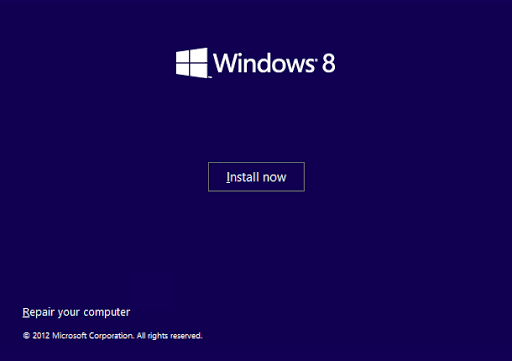
- Click Repair your computer at the Welcome screen

- Go to Troubleshoot > Command Prompt
- Type:
diskpart
- Press Enter
- Type:
sel disk 0
- Press Enter
- Type:
list vol
- Press Enter
- Determine which volume has FAT32 mentioned at the Fs column. This would be the UEFI/EFI partition with Windows 8/8.1
- Type:
sel vol 2
Where
2is the volume with the FAT32 format. - Press Enter
- Type:
assign letter x:
Where
x:is the partition’s letter. The letter must be unique. - Press Enter
- Type:
exit
- Press Enter
- Type:
cd /d x:\EFI\Microsoft\Boot\
Where
x:is the letter you used. - Press Enter
- Type:
bootrec /FixBoot
- Press Enter
- Type:
ren BCD BCD.backup
This would create backup of the BCD.
- Press Enter
- Type:
bcdboot c:\Windows /l en-us /s x: /f ALL
Where
c:\is the drive’s letter where Windows 8 is installed on. - Press Enter
- Remove the DVD or USB
- Type:
exit
- Press Enter
- Restart your computer
Repair Windows 10 on a dual-boot system
Using the bootrec utility you can repair Windows 10 on a dual-boot system and boot into your Windows.
Using bcdboot, attempt to fix your computer and have the boot menu back:
- Insert the Windows 10 media and restart your computer to boot from the media
- Go to Command Prompt (click Troubleshoot > Command Prompt)
- Type:
bcdboot C:\windows
Where
C:\is the drive’s letter where Windows 10 is installed on. - Press Enter
- Remove the DVD or USB
- Type:
exit
- Press Enter
- Restart your computer
Fix #2: Use diskpart, then bootrec
- Insert the Windows 10 media
- Restart your computer and boot from the media
- Click Repair your computer at the Welcome screen
- Go to Troubleshoot > Command Prompt
- Type:
diskpart
- Press Enter
- Type:
sel disk 0
- Press Enter
- Type:
list vol
- Press Enter
- Determine which volume has FAT32 mentioned at the Fs column. This would be the UEFI/EFI partition with Windows 10
- Type:
sel vol 2
Where
2is the volume with the FAT32 format. - Press Enter
- Type:
assign letter x:
Where
x:is the partition’s letter. The letter must be unique. - Press Enter
- Type:
exit
- Press Enter
- Type:
cd /d x:\EFI\Microsoft\Boot\
Where
x:is the letter you used. - Press Enter
- Type:
bootrec /FixBoot
- Press Enter
- Type:
ren BCD BCD.backup
This would create backup of the BCD.
- Press Enter
- Type:
bcdboot c:\Windows /l en-us /s x: /f ALL
Where
c:\is the drive’s letter where Windows 10 is installed on. - Press Enter
- Remove the DVD or USB
- Type:
exit
- Press Enter
- Restart your computer
